Self-hosted Dyslibria
Self-hosted Dyslibria
Turn Dyslibria into a private reading home where people can browse books, pick up where they left off, and use OPDS or WebDAV without handing the library to somebody else.
What you'll cover
- Docker-first installation
- Browser reader with saved progress
- OPDS and WebDAV access
- Reader and administrator accounts
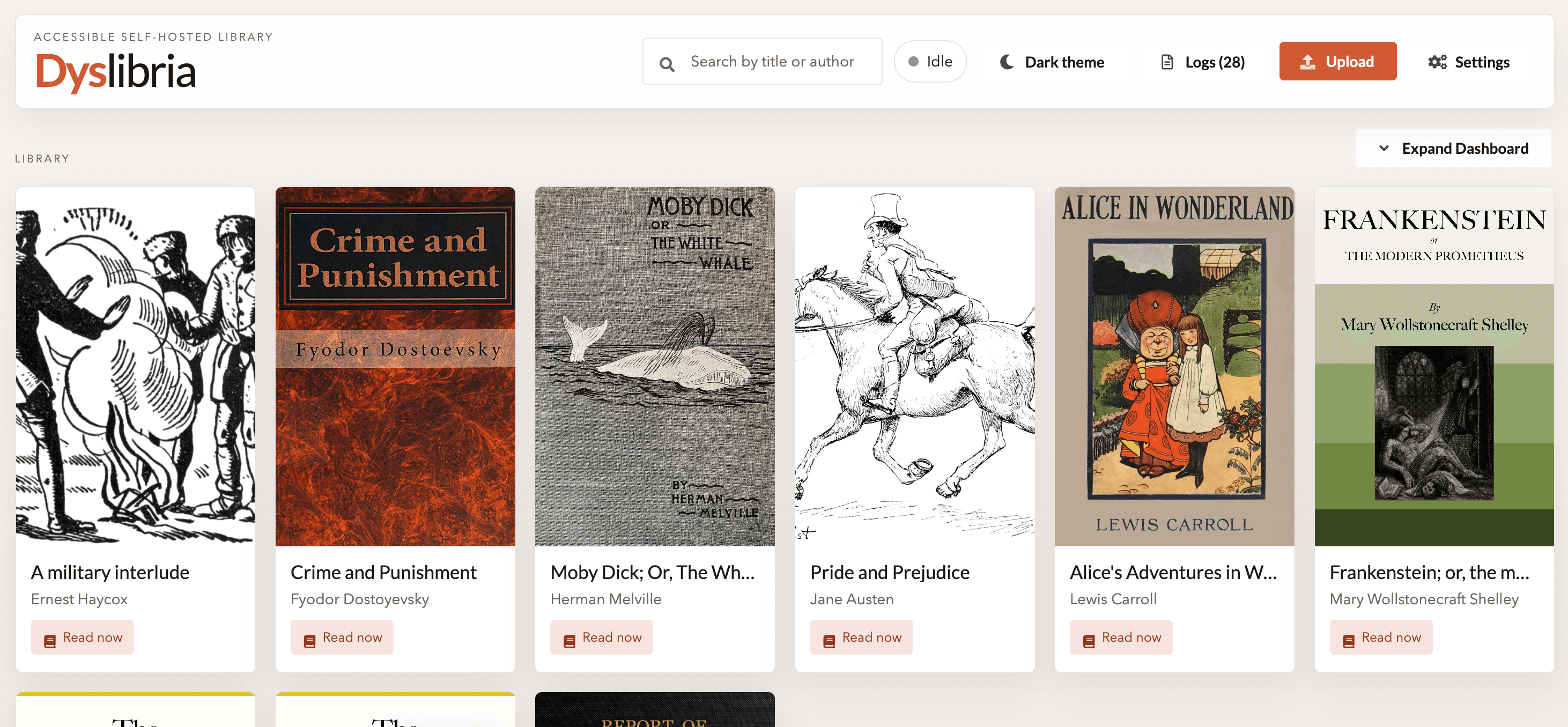
Chapter 1 · 6 min read
Self-hosted library overview
Try it for yourself
This is the actual Dyslibria browser reader running inside the page. Use the switch below to compare the same opening of a public-domain book with Dyslibria guidance on and off.
Pay attention to:
These are the cues most people notice first when the reading surface starts to feel calmer.
- Track the lineNotice how your eyes move across each sentence.
- Keep your placeSee how easy it feels to stay anchored in the text.
- Feel the paceWatch whether the rhythm pulls you forward or slows down.
- Need fewer re-readsCheck whether you can keep going without doubling back.
Live reader demo, loading a supported-language sample automatically when one matches your location.
The reader surface above is not a mock-up. It is the real browser reader, using the same EPUB rendering stack as the hosted library.
What Dyslibria gives you
The self-hosted app is the whole reading experience in one place: library, reader, accounts, feeds, and conversion.
Some readers say the Dyslibria style makes a long page feel less slippery by applying selective whole-word emphasis and steadier structural pacing. It will not suit everyone, which is exactly why Dyslibria is built as something you can try, compare, and keep under your own control.
A single install gives you the browser reader, a library wall, uploads for administrators, saved progress, OPDS feeds for compatible reading apps, and WebDAV for direct access to the same processed books.
- Upload EPUB files and turn them into a Dyslibria-ready library
- Browse the library by title or author
- Resume from the last saved location
- Share one install with administrators and reader-only accounts
- Let readers use the same books through the web app, OPDS, or WebDAV
Who should choose the self-hosted route
Choose the self-hosted app if you want a real library rather than a temporary upload tool. It works especially well for households, classrooms, private servers, and small communities that want books, reading progress, and user access to stay in one place for the long term.
If you only need the conversion engine inside your own scripts or pipelines, the npm package is the simpler route. The self-hosted app is for people who want the reading home as well as the conversion.
A good mental model
Think of the self-hosted app as your library and reading home, and dyslibria-converter as the portable engine when you only need conversion inside your own workflow.
The day-to-day workflow
Upload books as an administrator
Administrators can add one or many EPUBs from the top bar. Dyslibria stages the source files, converts them, and publishes successful results into the processed library.
Browse and search the library
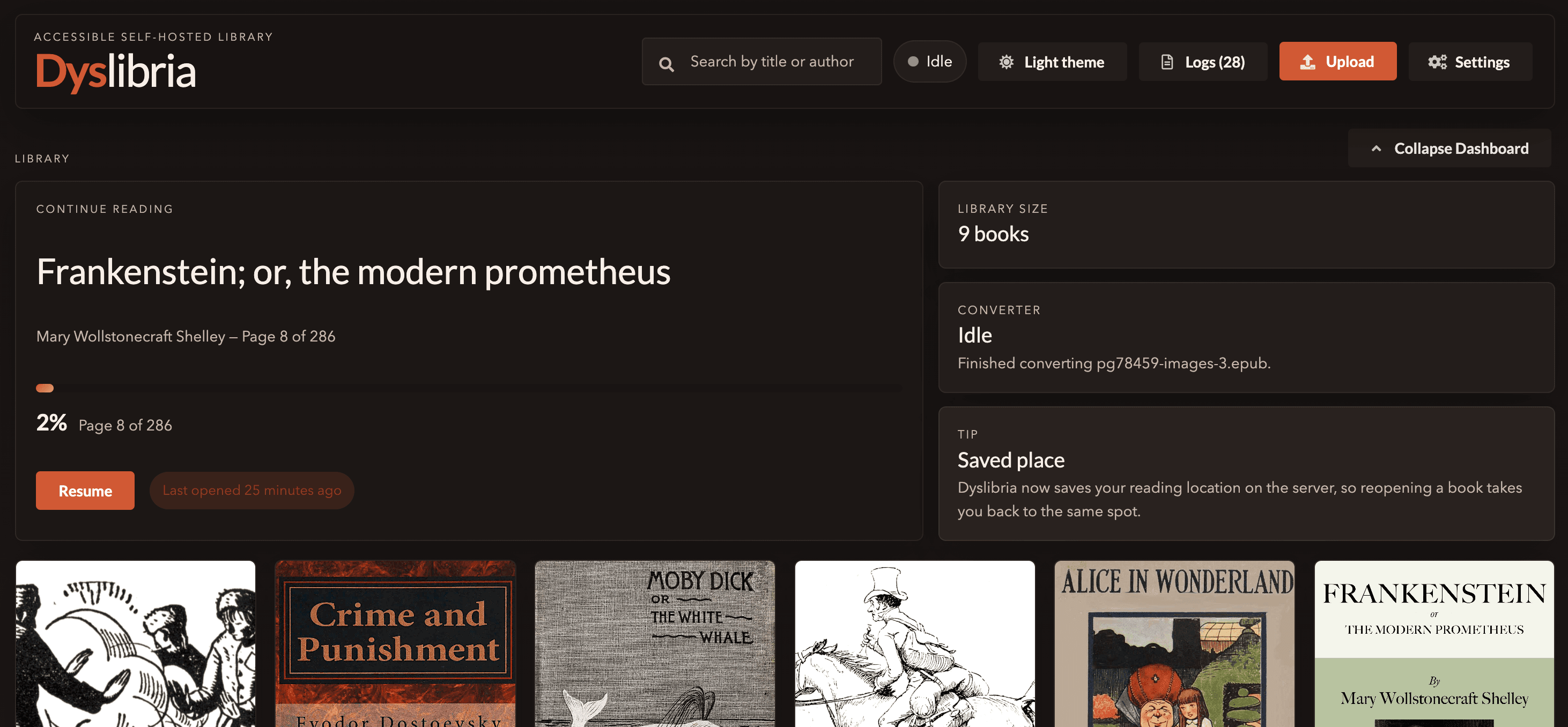
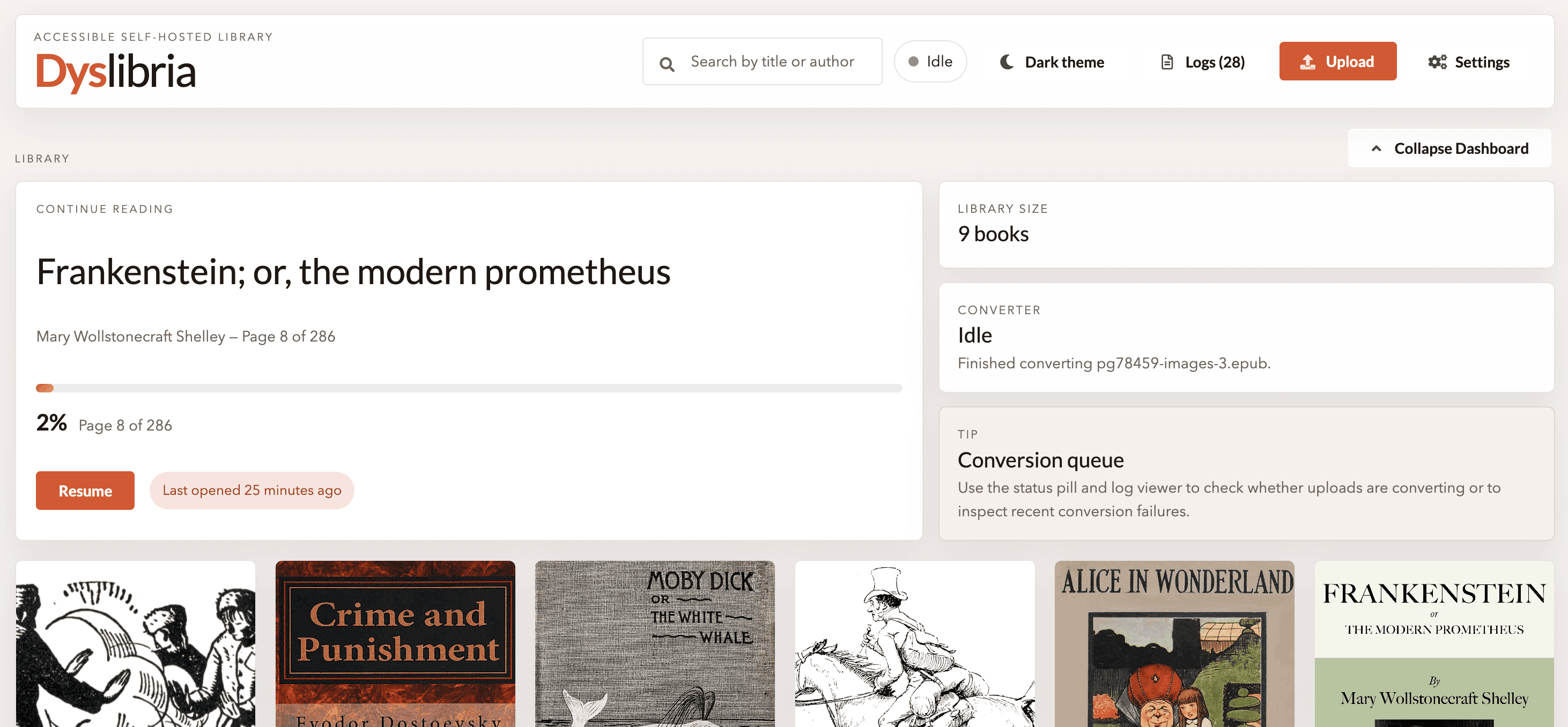
Readers see a searchable wall of converted books, a continue-reading panel when progress exists, and a responsive layout that works on desktop, tablet, and mobile.
Read in the browser or a client app
Books open in the full-window Dyslibria reader, while OPDS and WebDAV give you alternative ways to reach the same processed library.
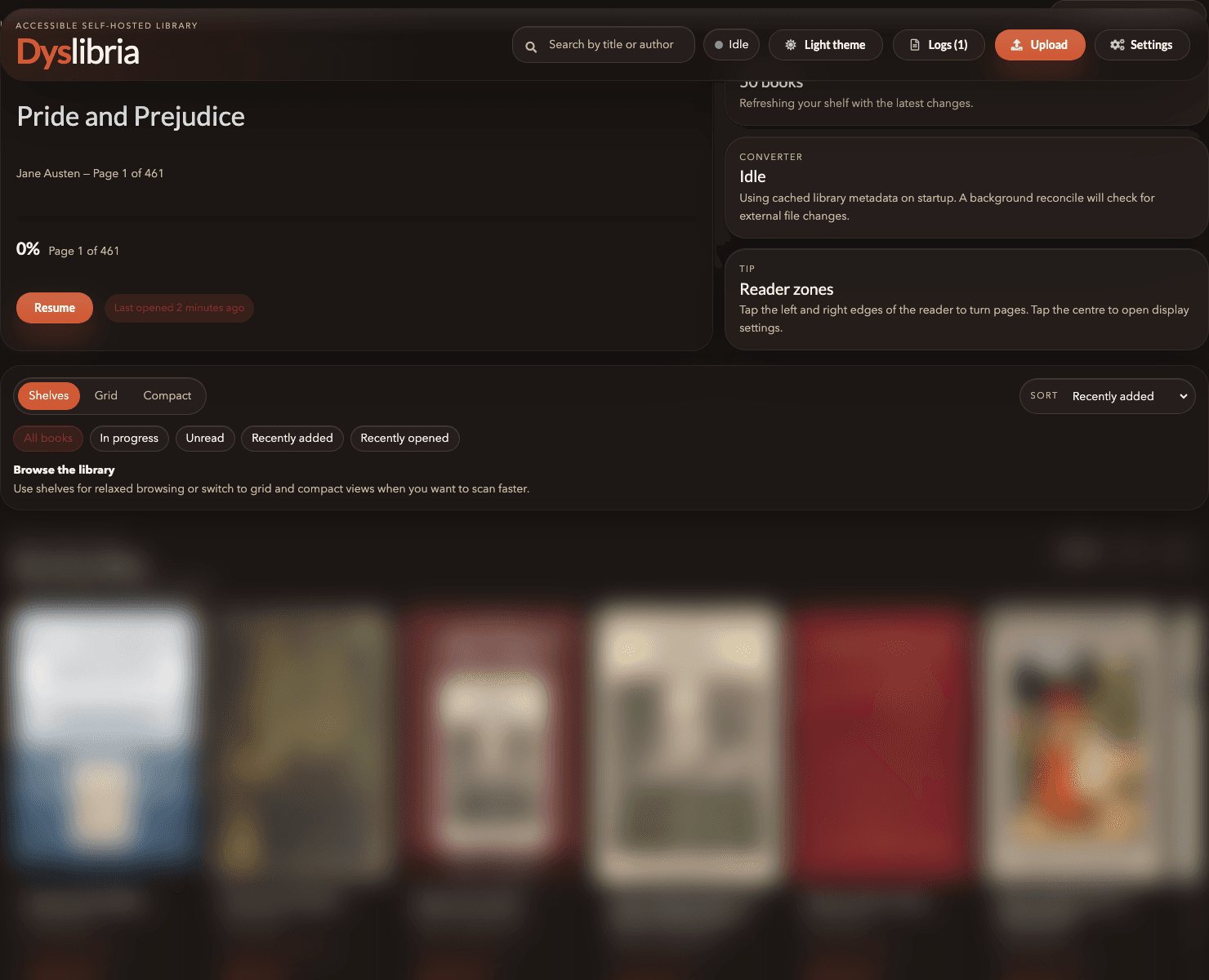
Library controls stay close to the shelf
The self-hosted home screen keeps search, upload, logs, settings, and shelf filters in one place so administrators do not have to bounce between separate admin pages for routine work.
A helpful mental model is to treat the page as three zones: the top bar for actions, the dashboard cards for state, and the shelf controls for browsing.
- Search by title or author from the header
- Switch between Shelves, Grid, and Compact views
- Filter by All books, In progress, Unread, Recently added, or Recently opened
- Sort the visible shelf without leaving the page
- Keep Upload, Logs, and Settings one click away for administrators
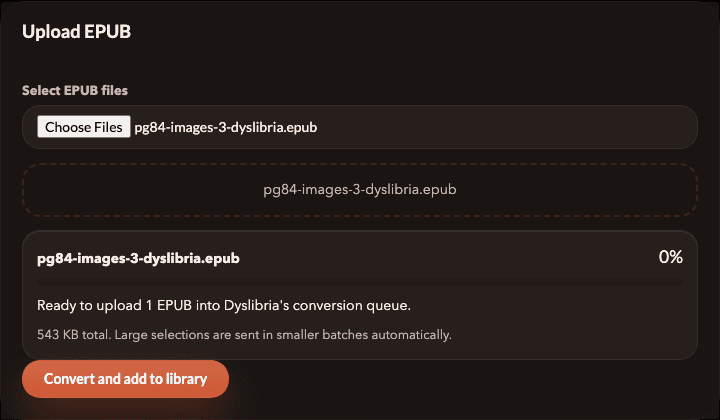
Uploads happen without leaving the library
Administrators launch uploads from the same header bar used for search and settings. The modal accepts one or many EPUBs, shows the selected files immediately, and hands them to the converter without taking readers away from the shelf.
That workflow is especially useful in shared libraries because new books can be staged quickly, while the queue and failed-file handling stay inside the same install.
What lives on disk
Dyslibria stores more than finished books. It also keeps uploads, failed files, settings, user accounts, metadata, and reading progress.
That is why persistence matters from day one. Even for a personal install, treat the data folders or Docker volumes as something you mean to keep.
- `uploads/` holds staged incoming EPUBs
- `processed/` is the live library used by the web reader, OPDS, and WebDAV
- `db/` stores settings, metadata cache, reader progress, and user accounts
- `failed/` quarantines books that did not validate or convert cleanly
- `temp/` is working space only and does not need long-term persistence
Chapter 2 · 10 min read
Install with Docker
If you want the easiest path to a proper self-hosted library, Docker gets you there quickly and keeps the important folders safe from the start.
- Requires Docker and Docker Compose
- Web app and OPDS on port 3000 by default
- WebDAV on port 1900 by default
- Named volumes are enough for a clean first install
Before you start
Docker is the least fussy way to get Dyslibria running, especially if you would rather read than spend an afternoon babysitting dependencies.
On macOS or Windows, install Docker Desktop. On Linux, install Docker Engine together with the Compose plugin. Once installed, confirm everything is working with `docker --version` and `docker compose version`.
You only need one machine that can expose two ports: port 3000 for the web app and OPDS feed, and port 1900 for WebDAV. For trying Dyslibria locally, a laptop is fine. For a household or long-running library, a small VPS or home server is a better fit.
Two ports, two purposes
Port 3000 serves the web app, health check, and OPDS catalog. Port 1900 serves WebDAV for compatible clients and file browsers.
Create a small Compose file and start Dyslibria
You do not need to clone an old repository just to run the library. The self-hosted app is published as the `wilburforce83/dyslibria` image on Docker Hub, so the normal route is to create a small folder, save a Compose file, and launch the container from there.
Create an empty folder such as `dyslibria/`, save the `docker-compose.yml` from the next step inside it, and then run the commands below from that folder.
- Web app: `http://localhost:3000`
- OPDS feed: `http://localhost:3000/opds`
- WebDAV: `http://localhost:1900`
Quick start
terminal · bash
mkdir dyslibria
cd dyslibria
docker compose pull
docker compose up -d
What the Docker Compose file does
For a first install, keep it simple: one container, two ports, and named volumes for the data you would hate to lose. This is enough for a personal server, household library, or small shared install.
The important line is the published image itself: `wilburforce83/dyslibria`. Pin a tag if you want slower, deliberate upgrades, or leave `latest` in place if you are happy to pull the newest published build.
docker-compose.yml
docker-compose.yml · yaml
version: '3.8'

services:
  app:
    image: wilburforce83/dyslibria:${IMAGE_TAG:-latest}
    container_name: dyslibria
    pull_policy: always
    ports:
      - "3000:3000"
      - "1900:1900"
    volumes:
      - dyslibria_uploads:/usr/src/app/uploads
      - dyslibria_processed:/usr/src/app/processed
      - dyslibria_db:/usr/src/app/db
      - dyslibria_failed:/usr/src/app/failed
    restart: unless-stopped

volumes:
  dyslibria_uploads:
  dyslibria_processed:
  dyslibria_db:
  dyslibria_failed:
Optional environment overrides
A Docker `.env` file is optional. Most people only need it when they want a custom port, a public domain, a fixed session secret, or a pinned image tag.
Set BASE_URL early if you want OPDS to work cleanly
OPDS links are built from `BASE_URL`, so set it to the public address readers will actually open if the app sits behind a reverse proxy or custom domain.
Optional .env
.env · env
MAIN_PORT=3000
WEBDAV_PORT=1900
BASE_URL=http://localhost:3000
# IMAGE_TAG=latest
# SESSION_SECRET=replace-with-a-long-random-string
# MAX_UPLOAD_BYTES=104857600
# MAX_EPUB_ARCHIVE_ENTRIES=5000
# MAX_EPUB_EXTRACT_BYTES=314572800
Updating, stopping, and checking health
Routine maintenance is straightforward because the update path is image-based. Pull the latest published image, recreate the container, and then make sure the service is back up.
Stopping the app with Compose does not remove the named volumes, so your library, reader progress, and settings stay put unless you explicitly remove those volumes yourself.
Common maintenance commands
terminal · bash
docker compose pull
docker compose up -d

docker compose down
docker compose ps
Chapter 3 · 8 min read
First-run setup and initial configuration
Use the bootstrap login once, create the real administrator account, and set the basics before other people start using the library.
- Bootstrap login is temporary
- Create a permanent administrator on first launch
- Configure install behaviour and public URL
- Use Settings for system defaults and account management
Use the temporary bootstrap login once
On a brand-new install, sign in with username `admin` and password `dyslibria`. Dyslibria immediately walks you into the first-run setup so you can create the account you actually want to keep.
Once the permanent administrator exists, the bootstrap credentials stop working. That is deliberate: long-term access should be controlled from inside the app, not left on a shared default login.
Do not keep using the bootstrap account
The bootstrap credentials are only there to get the first install off the ground. Finish setup before handing the server to other readers.
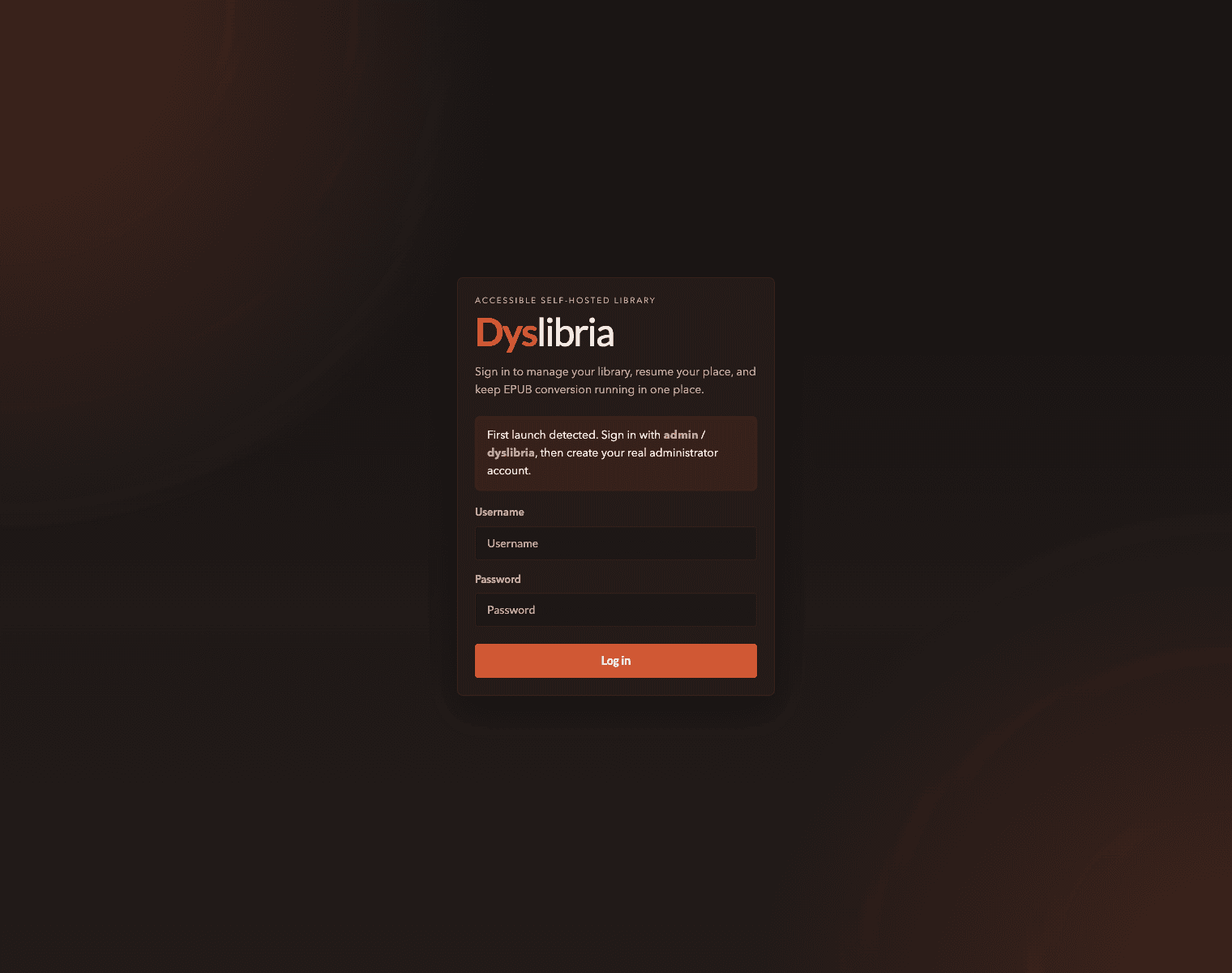
Create the permanent administrator
Choose a memorable administrator username
This becomes the main account used for uploads, settings, logs, and user management.
Set a strong password
The administrator can change system-wide settings and manage every user, so use a proper password from the start.
Sign back in with the new credentials
After the bootstrap flow finishes, normal authentication switches over to the permanent account.
The settings worth checking first
After setup, open the Settings page and check the values that affect how readers and apps reach the library. A private install can often keep the defaults, but a public one should set the external base URL straight away.
- WebDAV port
- Web app and OPDS port
- Upload path
- Library path
- External base URL
- Theme colour and install prompt behaviour
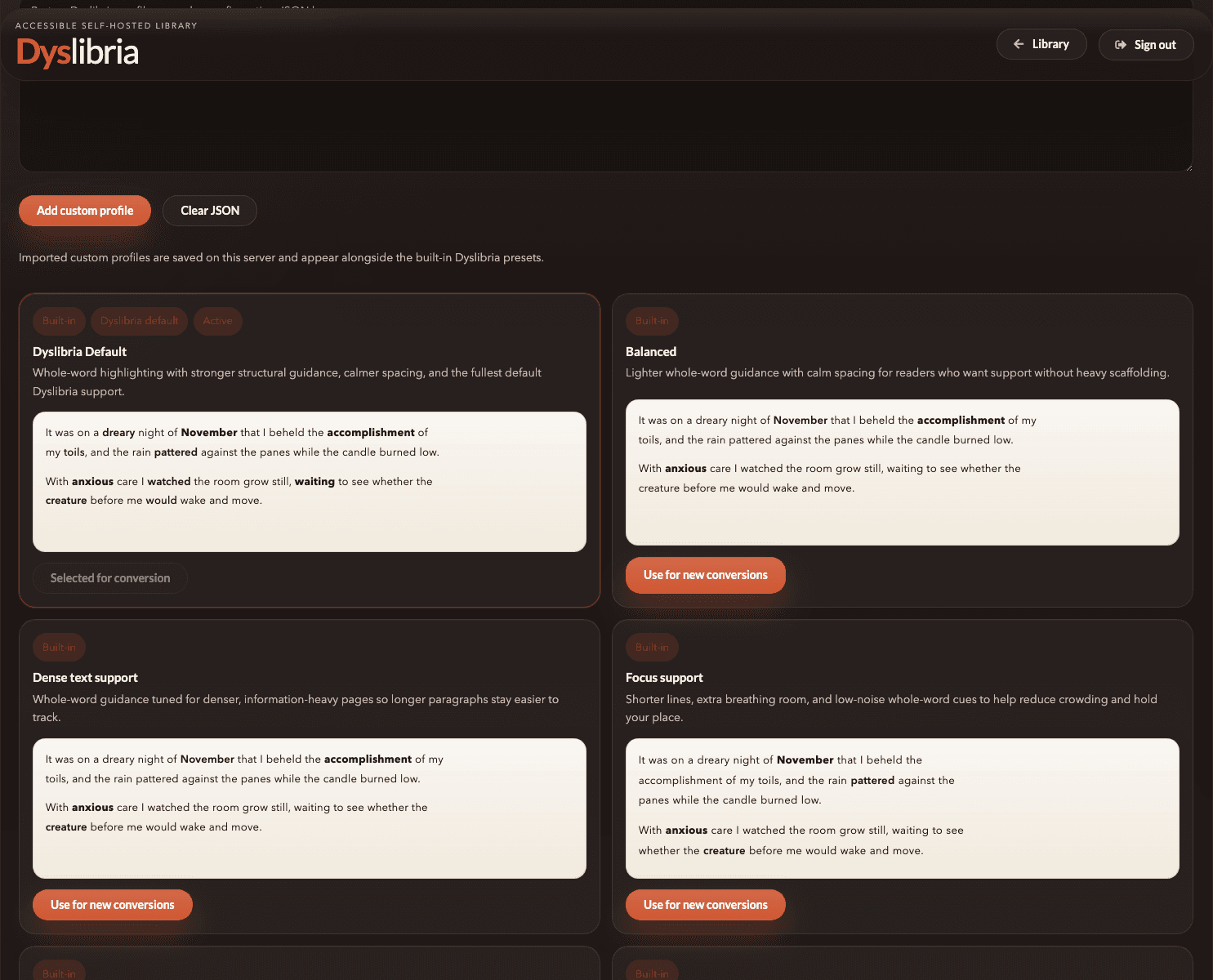
Set the conversion profile before bulk uploads
Dyslibria lets administrators choose which typography profile future uploads should use. This is worth checking early so the first wave of books matches the reading style you actually want readers to try.
Built-in presets are previewed inline, and custom profiles can be imported later if you want a more specific rhythm, emphasis pattern, or spacing balance.
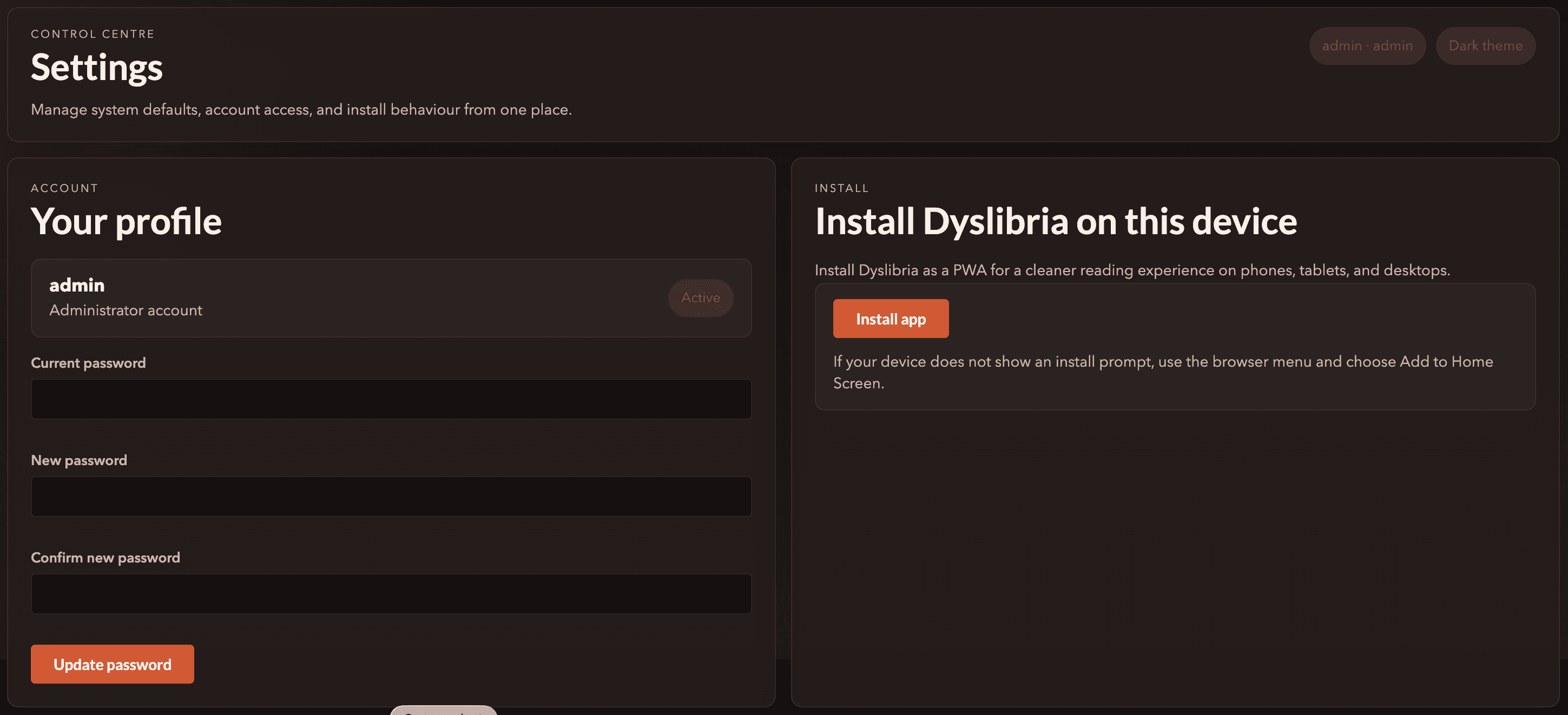
Installing Dyslibria as a PWA
Dyslibria can be installed as a progressive web app on phones, tablets, and desktops. That gives readers a cleaner, more app-like way back into the library.
On Android, the install experience is best over HTTPS or from `localhost` on the same device. On iPhone and iPad, installation is handled through Safari using Add to Home Screen.
Chapter 4 · 7 min read
Accounts, roles, and access control
Create reader-only accounts for day-to-day reading, keep administrator access limited, and reset passwords from one place.
- Administrator and Reader roles
- Per-user passwords
- Account activation and deactivation
- Readers can use OPDS and WebDAV with their own credentials
Administrator versus Reader
Dyslibria keeps the role model deliberately simple. Administrators handle uploads, settings, logs, and user accounts. Readers get the parts they actually need for reading.
That split works well for families, classrooms, and shared libraries because you can invite people in without giving everyone the keys to the whole system.
- Administrators can upload EPUBs, view logs, change system settings, and manage users
- Readers can browse the library, read in the browser, use OPDS, use WebDAV, and save reading progress
- Readers do not see administrator-only controls such as uploads, settings changes, or log management
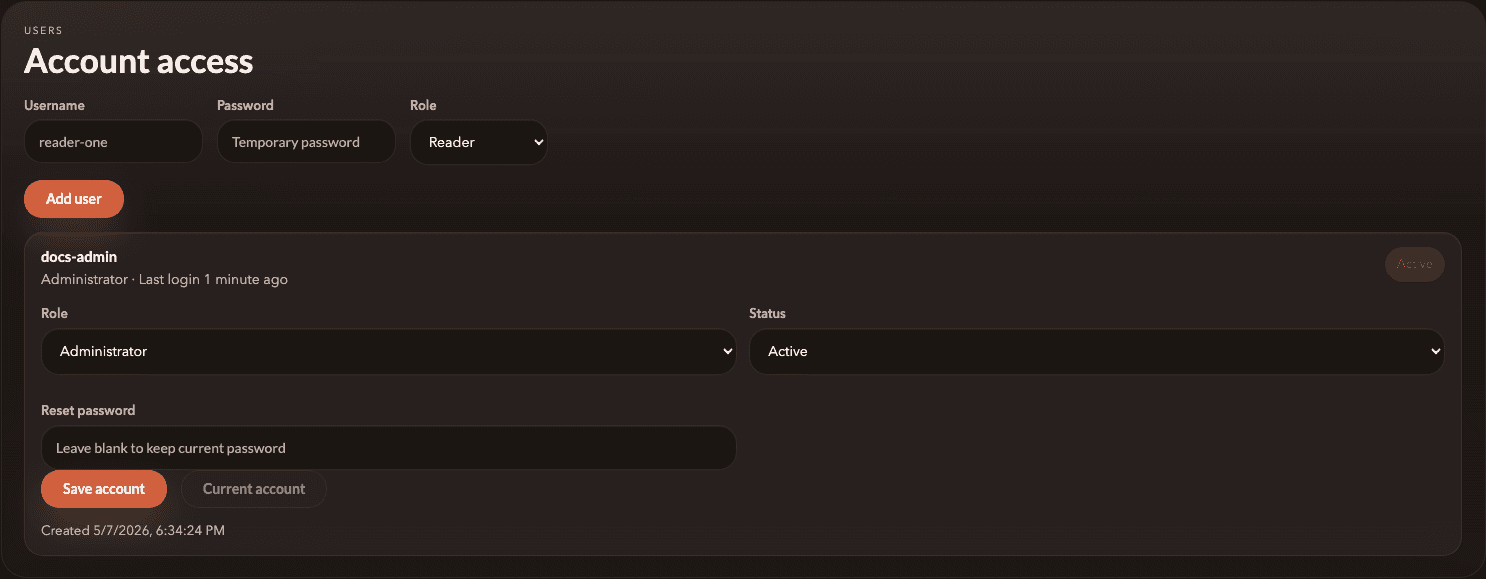
Adding and managing user accounts
Open Settings and go to account access
Create a username, assign a temporary password, and choose whether the new account should be a Reader or an Administrator.
Share credentials securely
Because Dyslibria is self-hosted, there is no hosted email invite flow by default. Hand credentials to readers through your normal secure channel.
Adjust role or status later if needed
Administrators can promote, demote, disable, or re-enable users from the same screen.
Password resets and routine account care
Users can change their own password from the profile section. Administrators can also set a fresh password for another user from the account access screen if somebody loses access.
A healthy habit is to keep the number of administrator accounts small and do everyday reading through reader accounts. That keeps accidental settings changes to a minimum.
Protect the last administrator
Do not disable or demote the only remaining administrator until another admin account is active and tested.
Chapter 5 · 8 min read
OPDS, WebDAV, and the reading experience
Dyslibria is not just a browser reader. It also lets people reach the same library through OPDS and WebDAV while keeping the built-in reading view focused and calm.
- OPDS feed at `/opds`
- WebDAV on port 1900 by default
- 9 themes, 12 font presets, spacing sliders, spread control, and a Dyslibria toggle
- Reading progress saves to the server automatically
The built-in browser reader
The web reader is designed as a dedicated reading surface rather than a cramped preview pane.
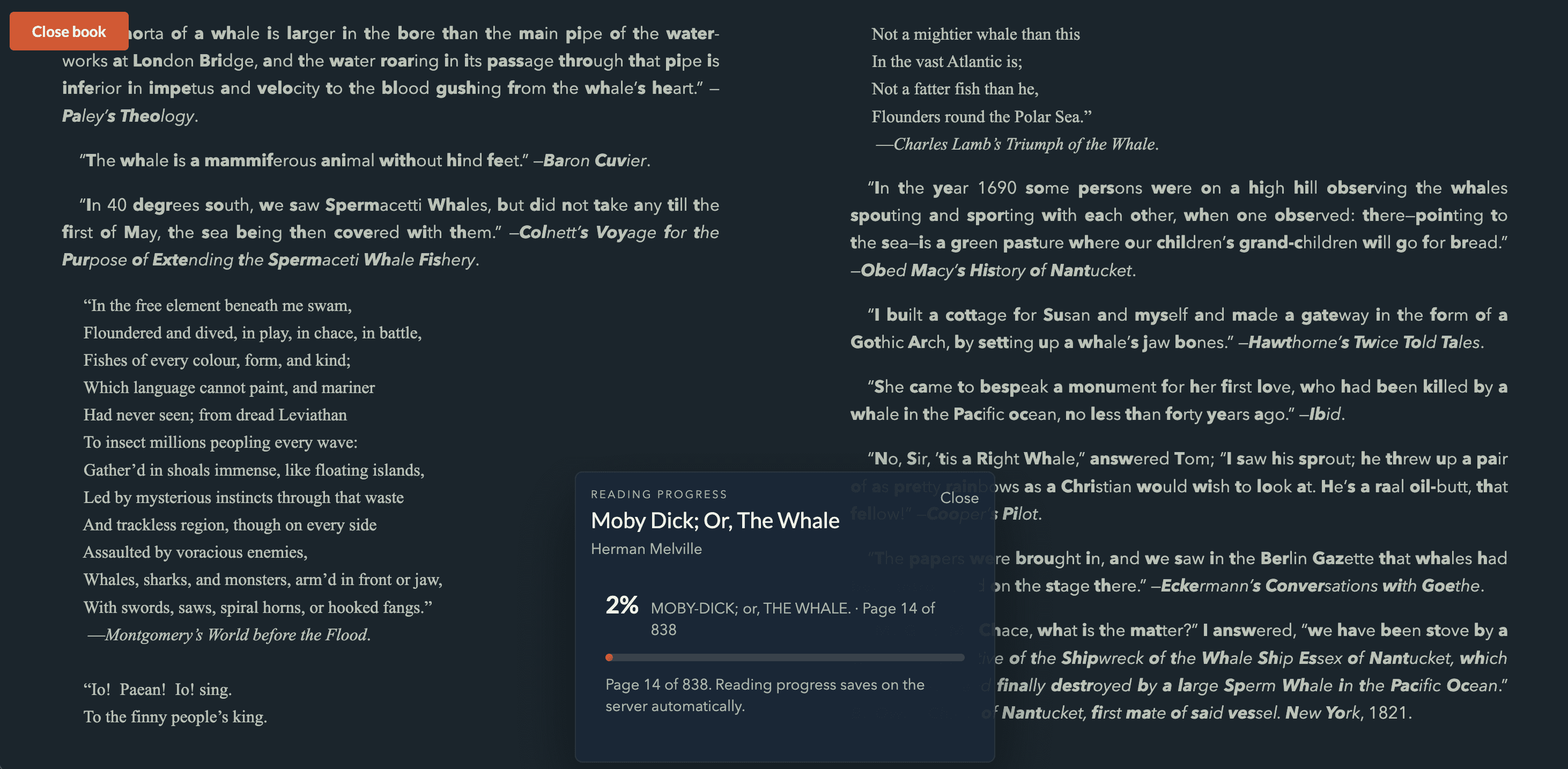
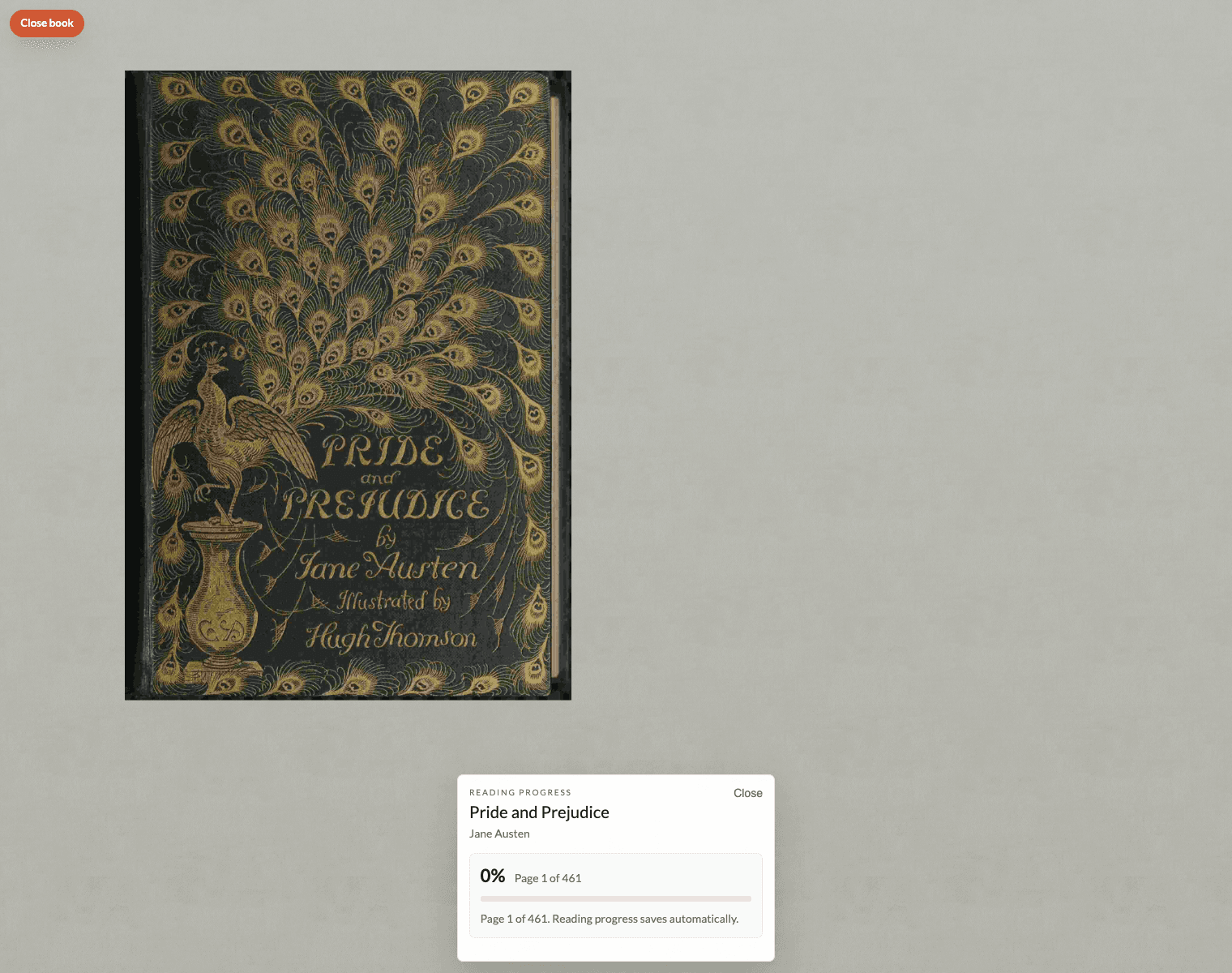
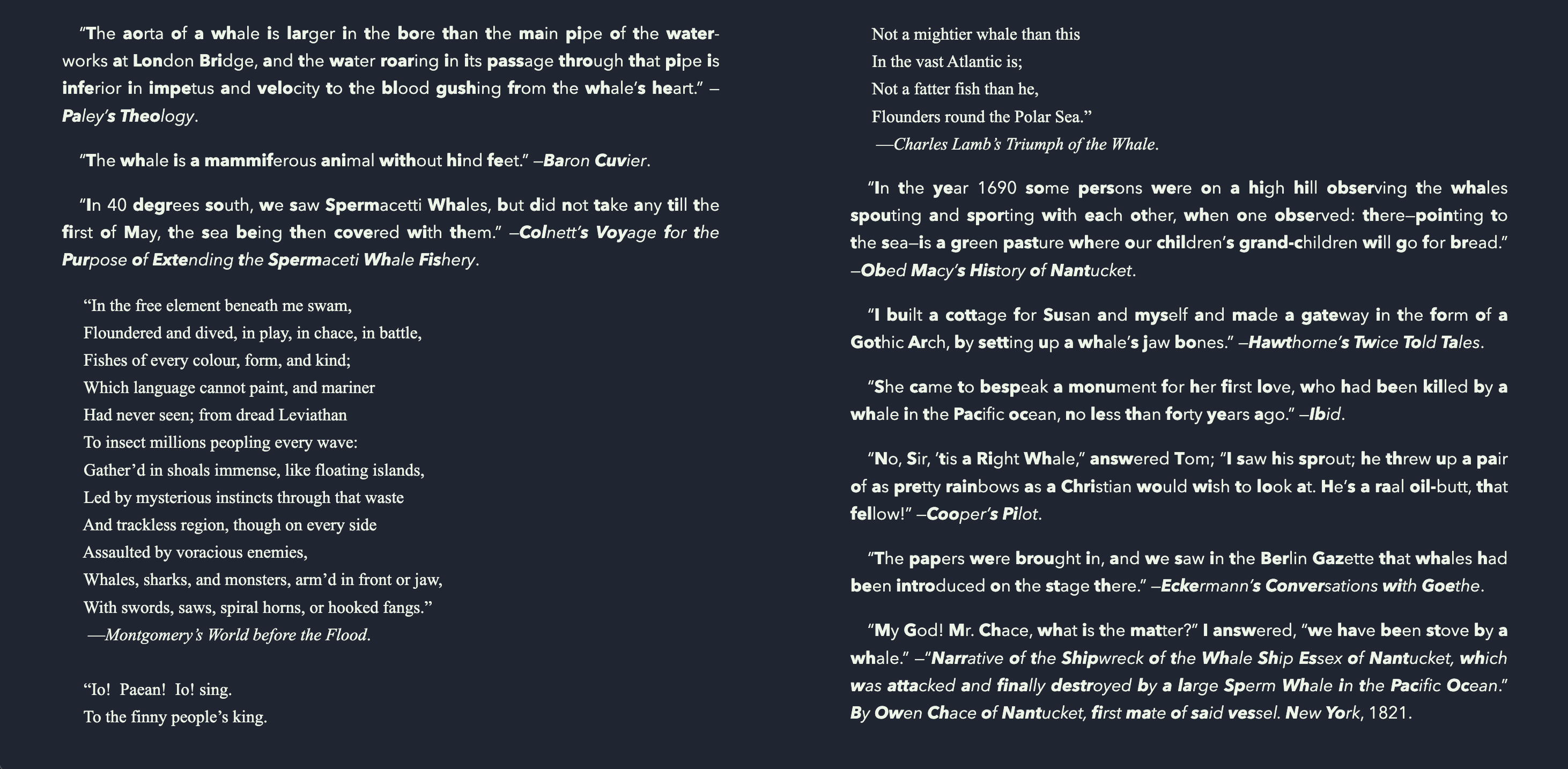
Open a book from the library wall or use Resume from the dashboard. Dyslibria opens it into a full-window reading view with minimal chrome, large tap zones, and settings that stay focused on the page rather than the furniture around it.
Desktop readers can use the arrow keys for navigation and `Escape` to dismiss overlays. On touch devices, the left and right edges act as page-turn controls while the centre opens display settings.
Reader settings that matter
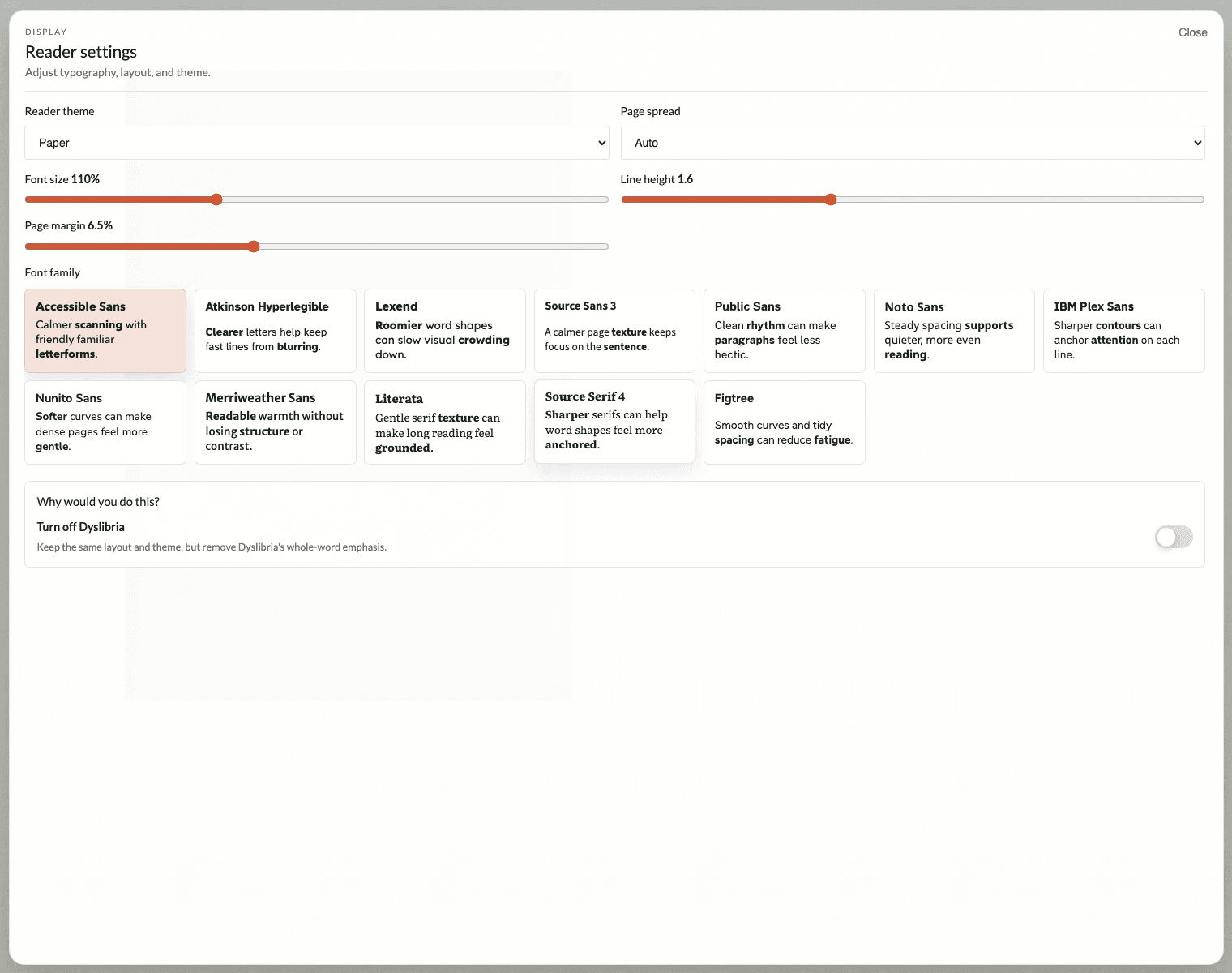
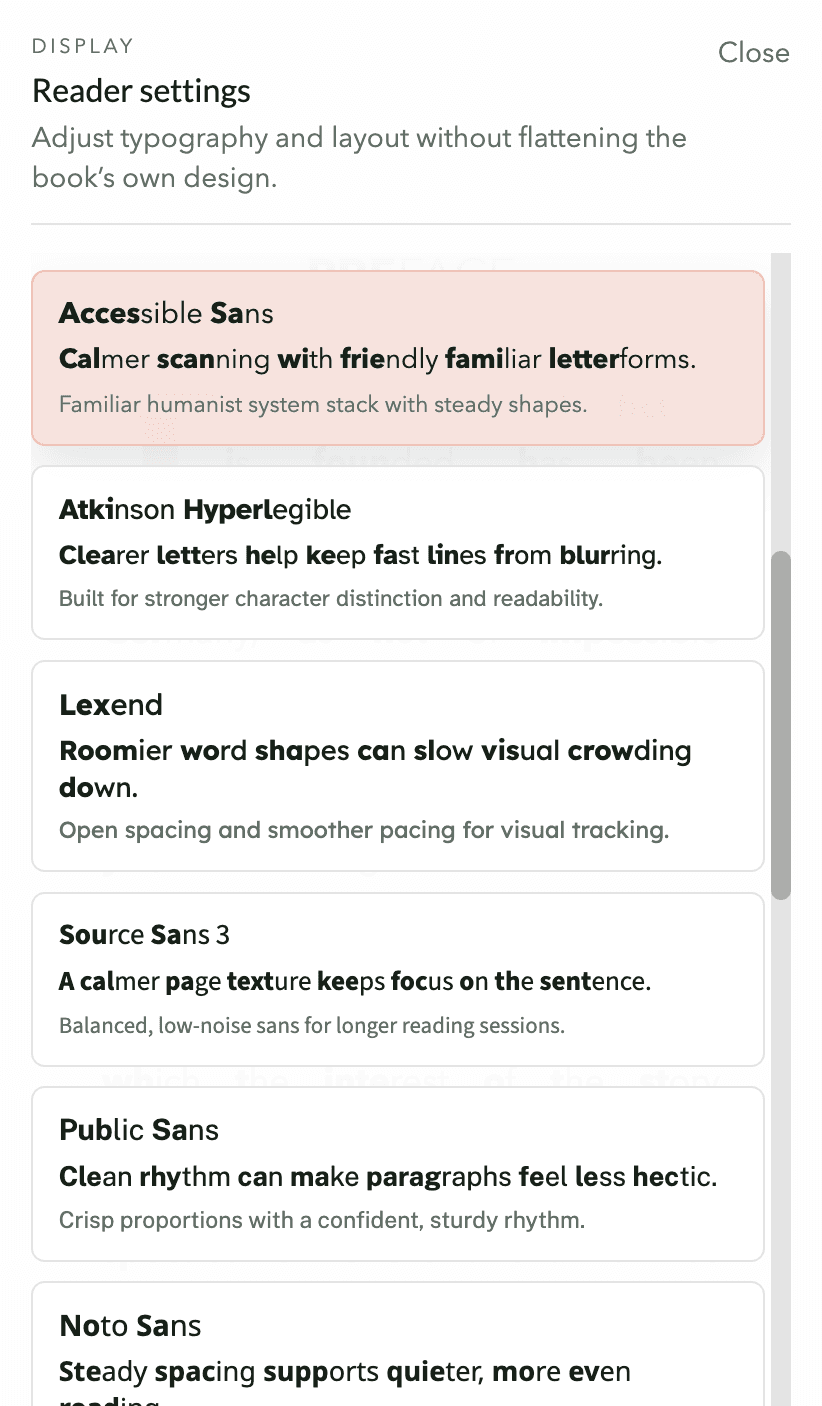
Dyslibria lets each reader tune the page without changing it for everyone else. The in-reader settings sheet covers the full reading surface: theme palette, spread behaviour, font size, line height, page margin, a larger font gallery, and a quick comparison toggle for reading the same book without Dyslibria’s emphasis.
- Reader themes: Paper, Warm cream, Soft sepia, Dusk paper, Sage paper, Slate paper, Cotton texture, Parchment grain, and Midnight
- 12-font gallery: Accessible Sans, Atkinson Hyperlegible, Lexend, Source Sans 3, Public Sans, Noto Sans, IBM Plex Sans, Nunito Sans, Merriweather Sans, Literata, Source Serif 4, and Figtree
- Reading comfort sliders: Font size from 50% to 235%, line height from 1.1 to 2.5, and page margin from 3% to 12%
- Page spread control: Auto, always show spreads, or single-page only
- Comparison toggle: Turn Dyslibria off while keeping the same theme, spacing, and layout choices
Reading progress is stored on the server
Progress is not trapped in one browser. Dyslibria saves the current place on the server, so reopening the same book takes readers back to the last saved location even if they change browser or device.
That server-side progress is also why the library dashboard can surface continue-reading status directly on the home screen.
Connecting through OPDS and WebDAV
Processed books are available outside the web UI too. By default, the OPDS feed lives at `http://localhost:3000/opds` and WebDAV listens on `http://localhost:1900`.
Use the same Dyslibria username and password you use for the main app. If OPDS links point at the wrong host or domain, confirm that `BASE_URL` is set correctly in your installation.
Public installs need the right base URL
If you expose Dyslibria through a domain or reverse proxy, always set `BASE_URL` to the exact public address readers and OPDS clients will open.
Chapter 6 · 7 min read
Persistence, upgrades, and backups
Keep the right folders safe, know what can be recreated, and make upgrades feel routine instead of nerve-racking.
- Persist uploads, processed, db, and failed
- `temp/` is disposable
- Named Docker volumes are fine for most installs
- Back up `processed/` and `db/` first
What you must keep
For a real deployment, treat four storage locations as durable data: `uploads/`, `processed/`, `db/`, and `failed/`. The `processed/` library and `db/` state matter most because they hold the finished collection and the information that makes the install feel like your install.
The `temp/` workspace can be deleted or recreated at any time. It exists only for extraction and packaging during conversion.
A practical backup order
Back up `processed/`
This is the reader-facing library and the part users care about most if the server disappears.
Back up `db/`
This contains user accounts, metadata cache, settings, and reading progress, which makes the install feel continuous instead of freshly rebuilt.
Optionally back up `uploads/` and `failed/`
These are useful operationally, but they are less critical than the processed library and application state.
Docker named volumes or host folders?
Named Docker volumes are the easiest option for most people because Compose manages them for you and they survive container recreation. Host-mounted folders are useful when you want your normal backup, snapshot, or NAS tooling to see the files directly.
Either approach is valid. The important part is to keep the paths stable across upgrades and avoid treating the container filesystem itself as permanent storage.
A calm upgrade routine
After an upgrade, open the web app once and confirm the library loads and a reader account can sign in. If the install is exposed publicly, check OPDS with one external client as part of the same routine so you know the reader-facing surfaces behave normally.
Upgrade routine
terminal · bash
docker compose pull
docker compose up -d

docker volume ls | grep dyslibria
docker compose ps